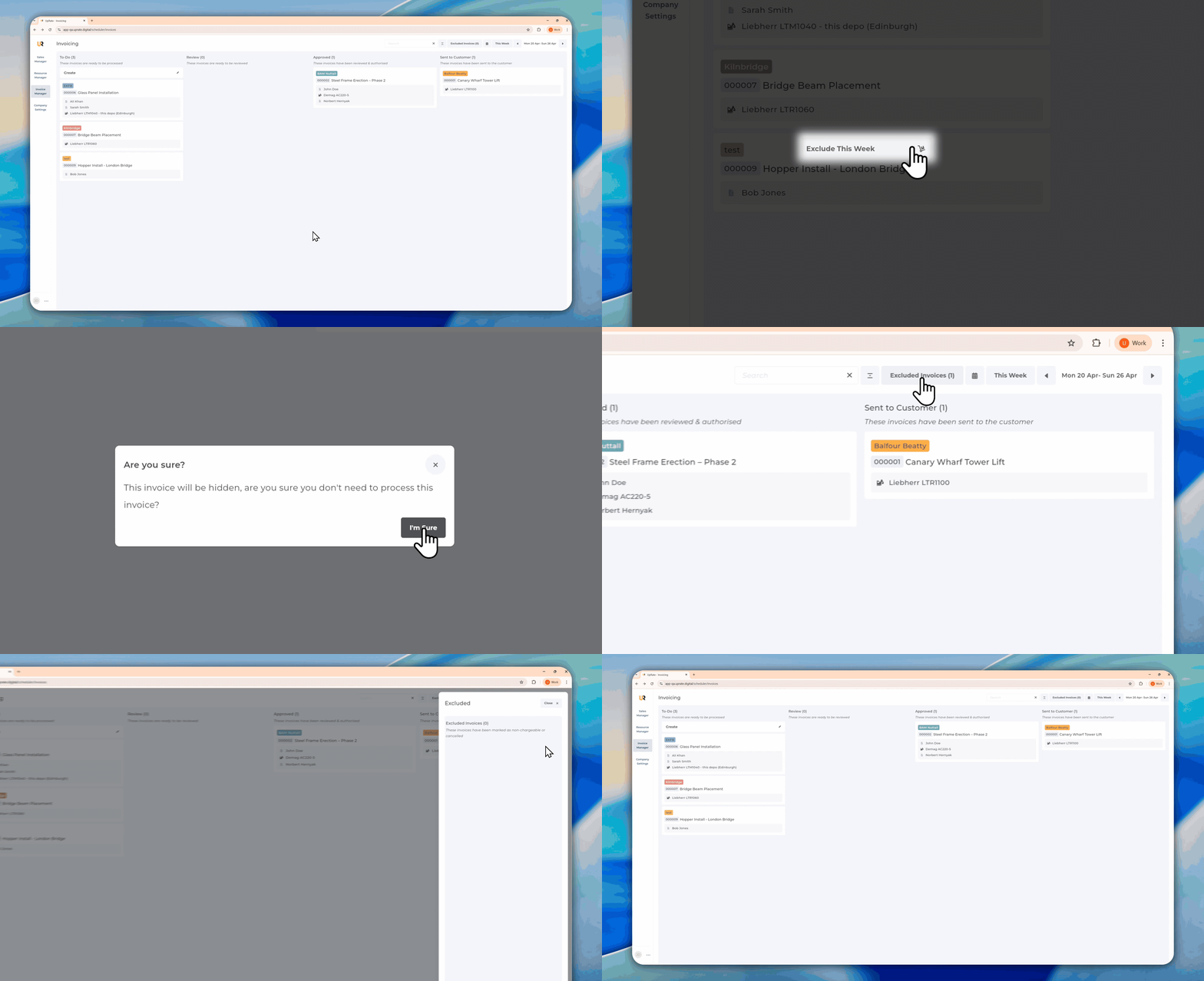

Invoice Manager Kanban Board
Learn how to use the Invoice Manager Kanban board to manage invoices, move them between status columns, find specific invoices, and navigate across different weeks.
When you enter the Invoice Manager you have the ability to navigate across weeks, add ad-hoc invoice and move your invoices across the Kanban board.
Navigation
Navigating Between Weeks
Open the Invoice Manager
On the top right corner you can find all the navigation buttons
Use the arrows to move across the weeks
Click This Week to jump to this week's view
Click the Calendar button to select a specific date
Change View Preference
There are two different views on the invoice Manager. With the expanded view you have access to additional information such as resources allocated on the assignment. You can toggle between the views the following way:
Open the Invoice Manager
On the upper right corner click on the toggle button
Additional Resources information gets turned on/off
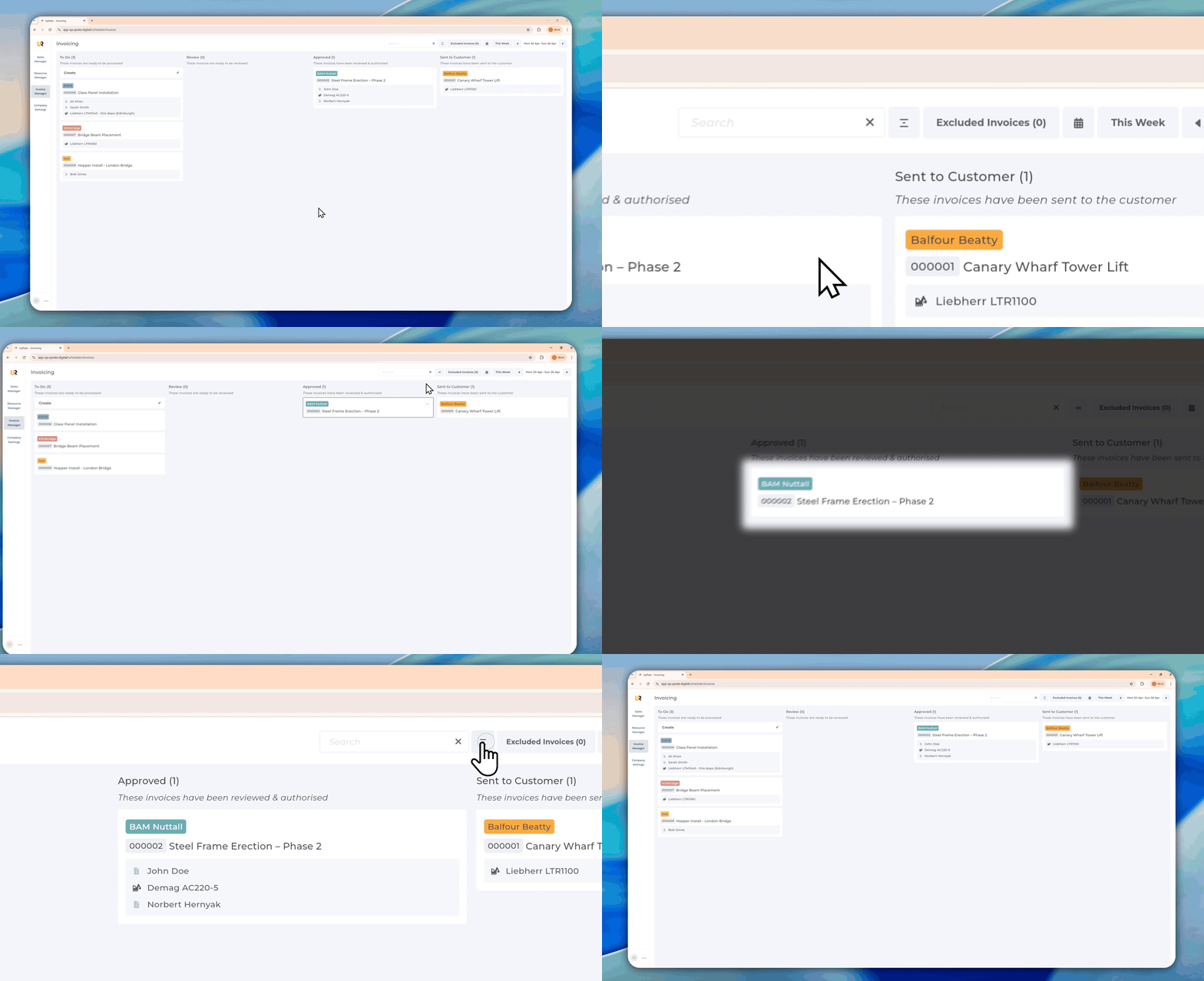
Process Invoices
Move Invoices Across the Kanban Board
You can move an invoice to a column in the Invoice Manager by selecting it from the dropdown selector on the Invoice Page.
Open the Invoice Manager
Click on the Invoice sticker
On the upper right corner click on the status selector dropdown
Select the status
The Kanban board automatically gets updated as you are redirected to the Invoice manager
Exclude Invoice From This Week
You have the ability to exclude invoices from this week's view if you do not need to process it. The invoice will not be deleted!
Exclude Invoices:
Open the Invoice Manager
Hover over the Invoice Sticker you want to exclude
Click on the three dots in the upper right corner of the sticker
Click Exclude This Week
Click I'm Sure on the disclaimer pop up
Add Excluded Invoices Back:
Open the Invoice Manager
Click on the Excluded Invoices button on the top right corner
Select the Invoice you want to add back
Click the Include This Week button