
Add/Edit Contract
Add or edit contracts
You can add a new Contract, update an existing one, or archive a Contract if no longer needed. Contracts cannot be permanently deleted from the system. This ensures that important historical data, such as previous invoices, hire contracts, and other records, remains available for reference and reporting even after the Contract is no longer current.
Add New Contract
To add a new contract you do not need any information regarding the contract. This is to make sure booking processes are quick and simple. A new contract by default will have an automatically assigned contract number allocated to it. Contract numbers can not be changed.
There are two places where you can add a new contract:
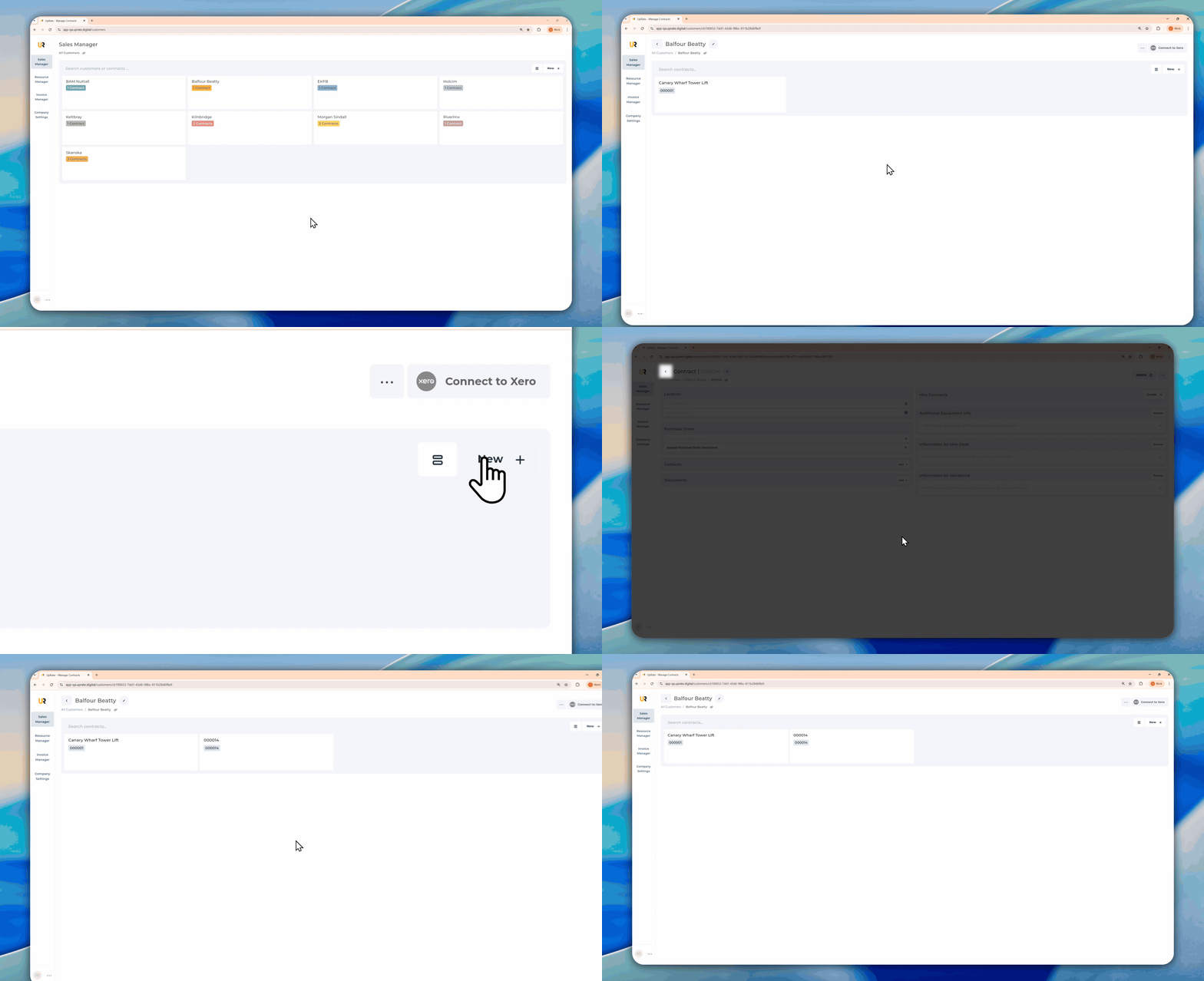
Sales Manager
Go to Sales Manager in the Left hand navigation Sidebar
Select a Customer or add New
Click New+ in the top right corner
Contract is automatically saved.
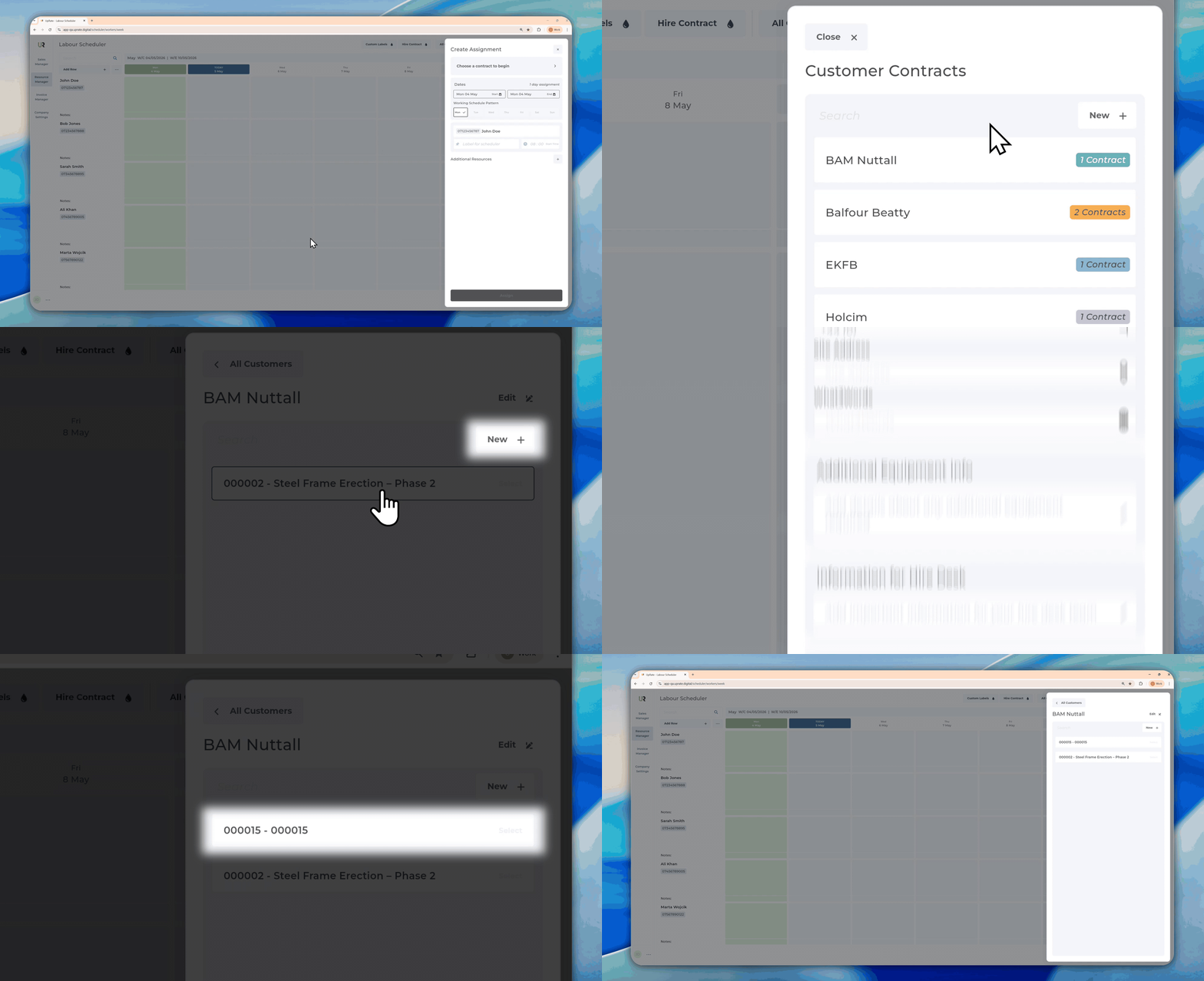
Create Assignment Sidebar
Go to Asset/Labour Manager in the Left hand navigation Sidebar
Add a new assignment
Click on Choose a contract to begin
Select Customer
Click New+ to add a new contract
Click Save
Edit an Existing Contract
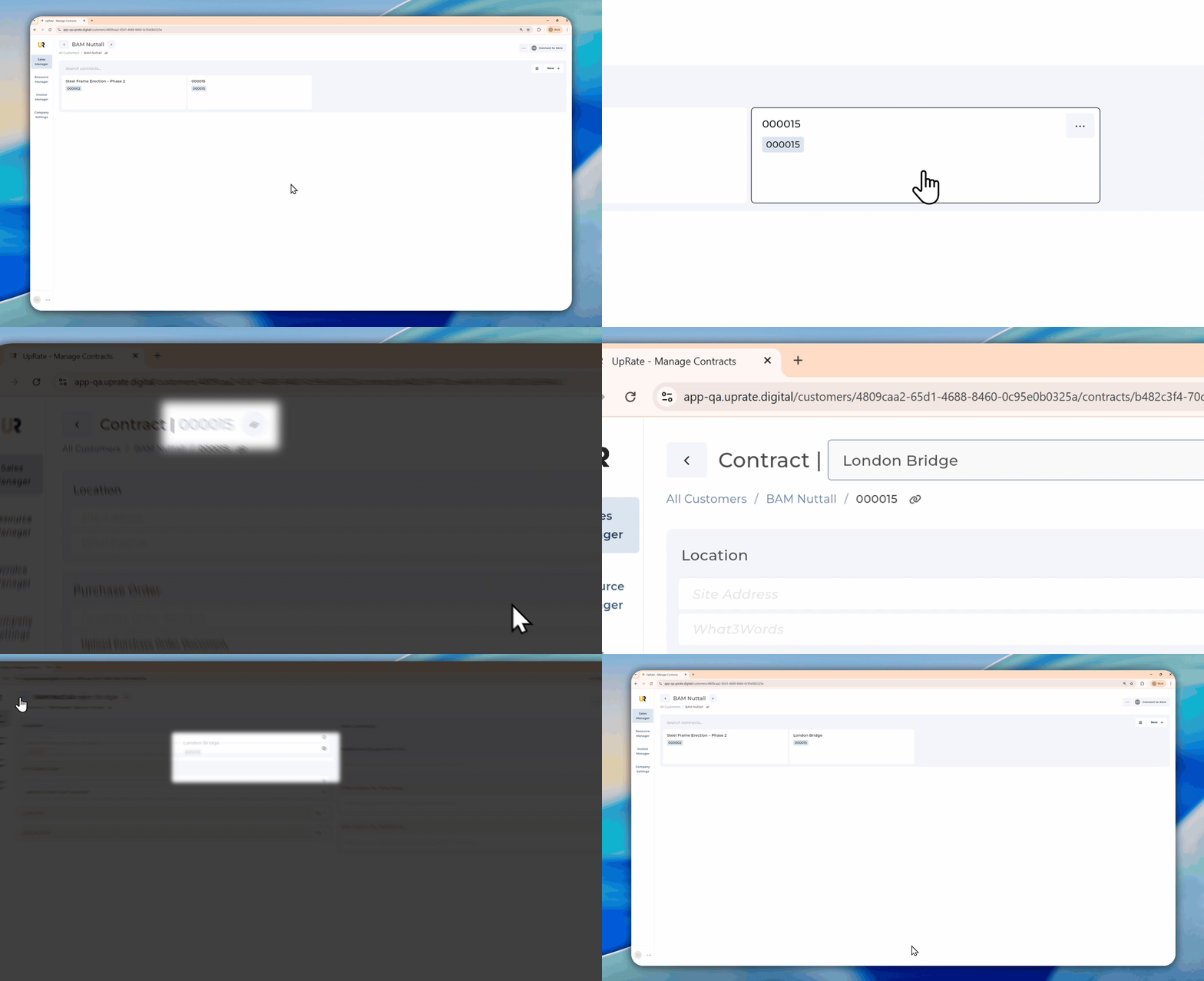
Edit Contract Name
Click on the Contract to edit
Click on the top name section
Change name and press enter (or simply click away to save automatically)
Edit Contract Details
You can edit an existing Contract whenever needed by clicking into the corresponding input field. Any changes made to a Contract record will be reflected across past, current, and future assignments and Hire Contracts. For this reason, Contract details should be updated with care.
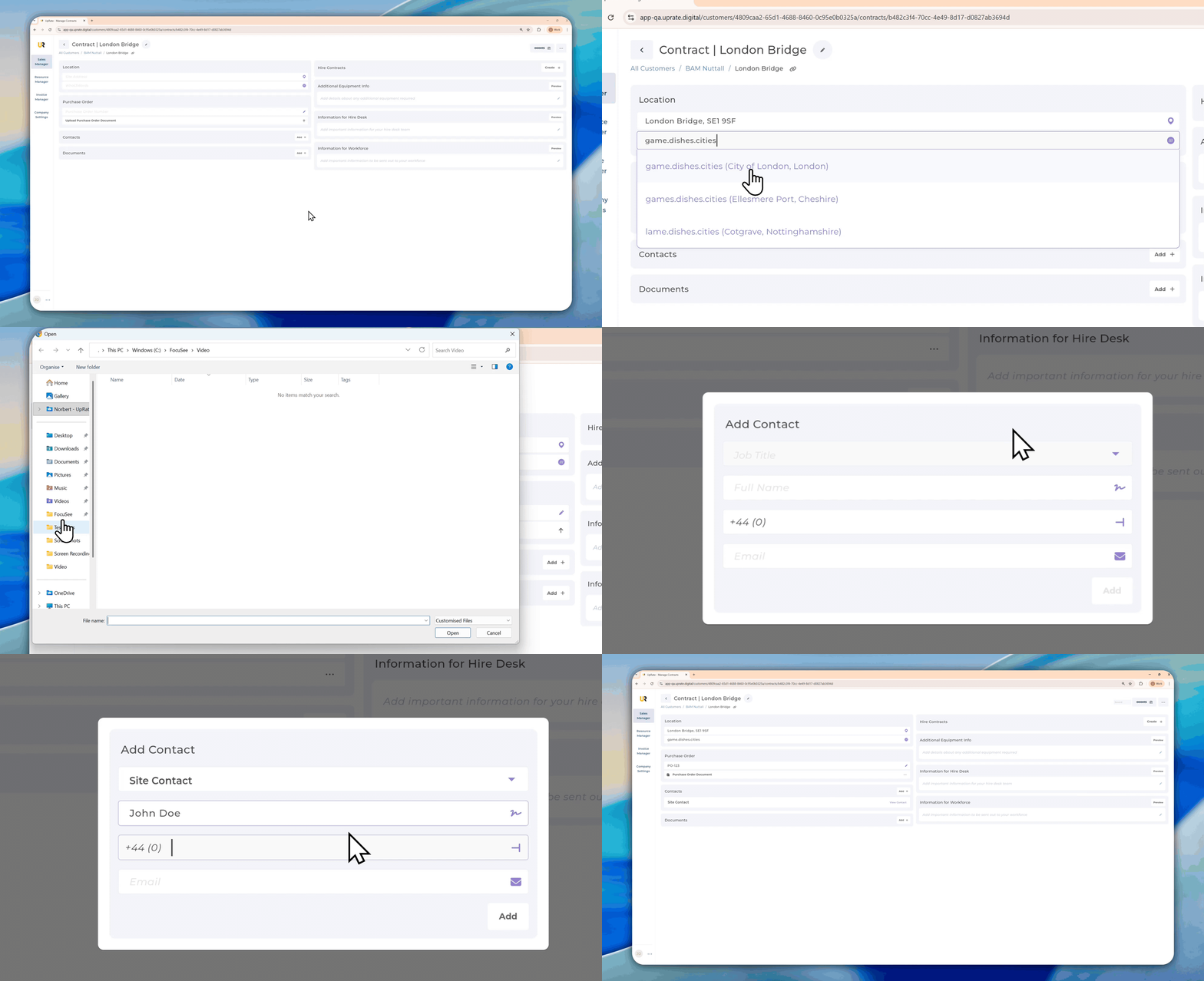
Add Additional Information to the Contract
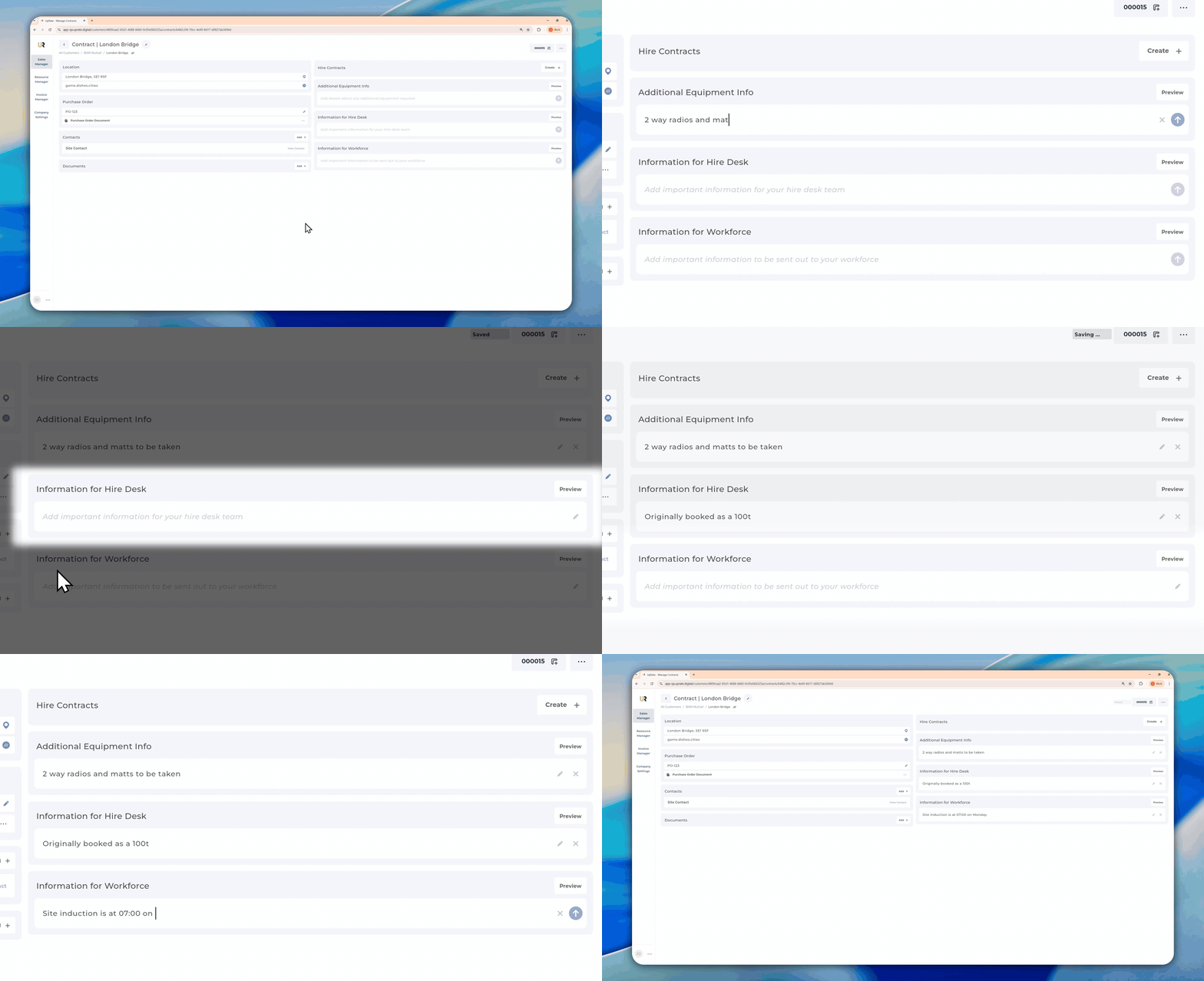
Additional Equipment Info
You can add Additional Equipment Information to the contract. This is to help you keep track of what equipment is needed for the duration of the contract and to be able to share this information with the workforce.
Information for Hire Desk
This information is for internal use only and is not part of the Assignment Message. This is useful to communicate between team members and to ensure everyone understands the lifecycle of the contract.
Information for Workforce
This information goes out to your workforce when sending Assignment Messages. Here you can communicate to your workforce additional information that is not present on the contract such as delivery times, overtime requests or any other info.
Archive/Unarchive an Existing Contract
Archive Contract
Find the Contract you want to archive
Click on the three dots in the top right corner of the Contract Sticker
Click Archive Contract
Click Archive Contract in the confirmation Pop Up
Unarchive Contract
Click on the Archived button in the top right corner of the Sales manager view
Find the Contract you want to unarchive
Click on the three dots in the top right corner of the Contract Sticker
Click Unarchive Contract
Click Back to All
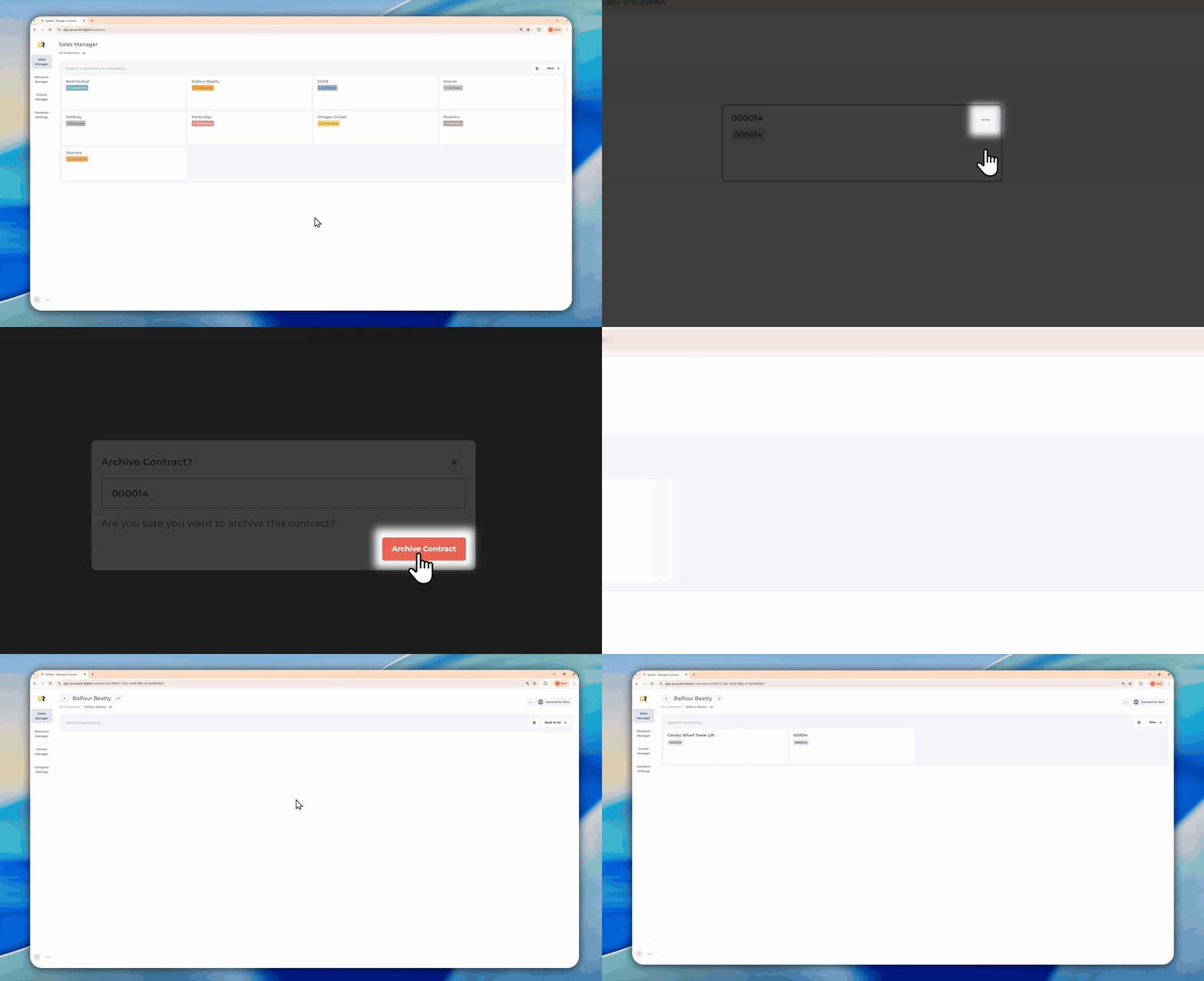
You can archive a Contract when they are no longer active. Archiving is a soft delete, which means the Contract is removed from active use but is not permanently deleted from the system. This keeps all historical data intact, including invoices, contracts, and Hire Contracts. Archived Customers can be made active again at any time by unarchiving them.
Toggle Contract between Not Chargeable/Chargeable
All contracts default to be chargeable.
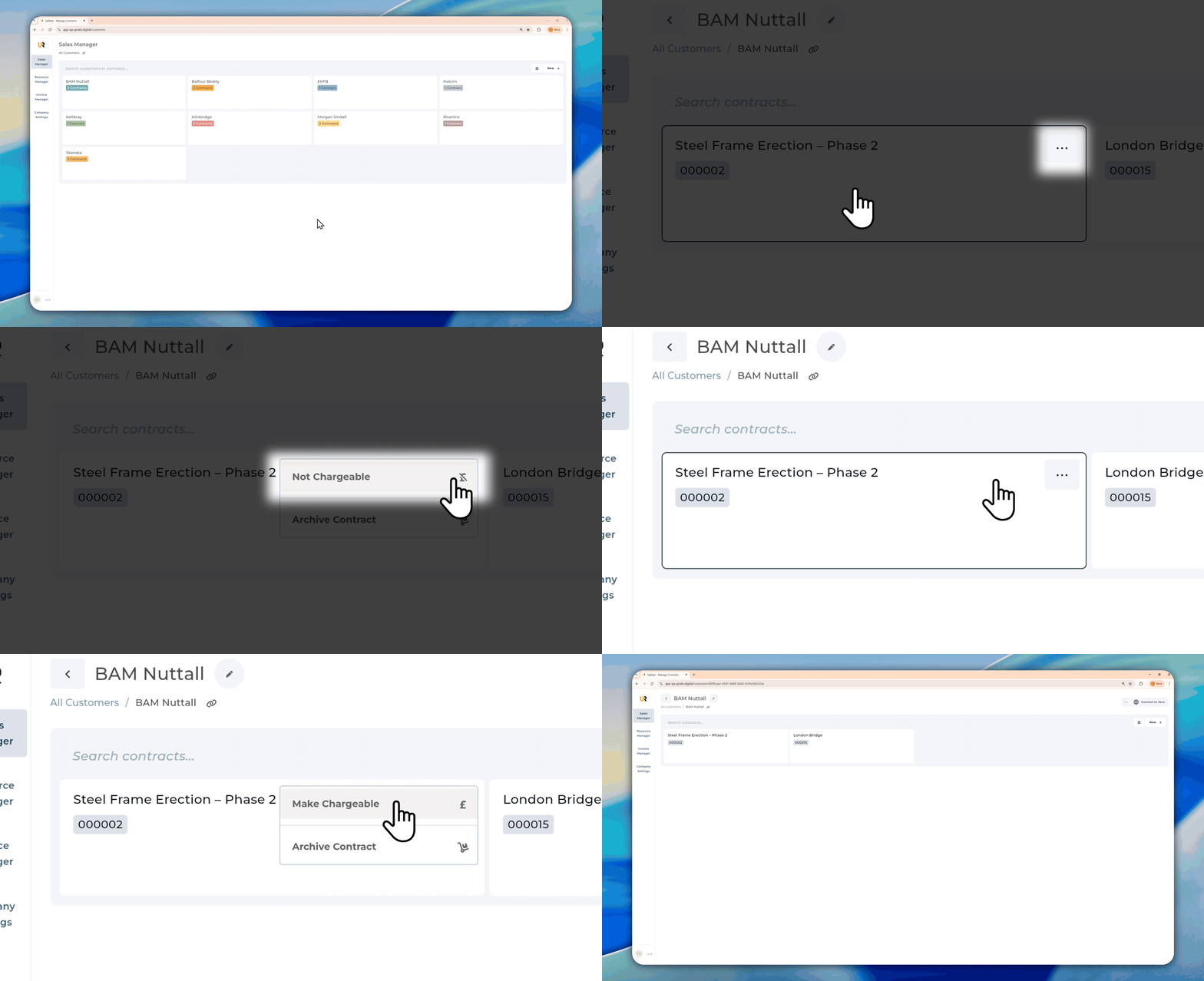
You can toggle a contract between chargeable or not chargeable. If you select a contract as Not Chargeable then it will NOT show up on the invoice Kanban. This can be used to allocate resources to contracts that do not need invoicing. There are multiple places where you can do this action.
Sales Manager
Select Customer in the Sales Manager
Find the Contract you want to mark as Not Chargeable
Click on the three dots in top right corner of the Contract sticker
Click Not Chargeable/Make Chargeable to change its status
Create Assignment Sidebar
This action can only be done when creating a new Contract via the Assignment Sidebar.
Create a New Assignment for a resource
Click on Choose contract to begin
Select an existing Customer or create new
Create a new Contract
Toggle Is Chargeable to the OFF position