

Assignment Overview
Guide how to use the Assignment Overview side panel.
Overview
The Assignment Overview is a daily view of the assignment.
It shows the key information linked to the selected assignment day, including:
Additional equipment information
Information for the hire desk
Information for the workforce
Resources assigned to the contract for that day
Edit Contract Details
Clicking on any of the assignment information will open the Edit Contract side panel, where you can make changes if required.
Editing Resource Labels and Start Times
Resource labels and start times can be edited from the Assignment Overview side panel.
These details are important because they are used in the Assignment Message:
The label appears in the Additional Resources section
The start time appears as the resource’s start time
Before sending the Assignment Message, check that each resource has the correct label and start time for that day.
Daily Message
You can also open the Daily Message side panel directly from this view. This allows you to check and send the daily texts to the resources assigned for that day.
How to Access the Assignment Overview
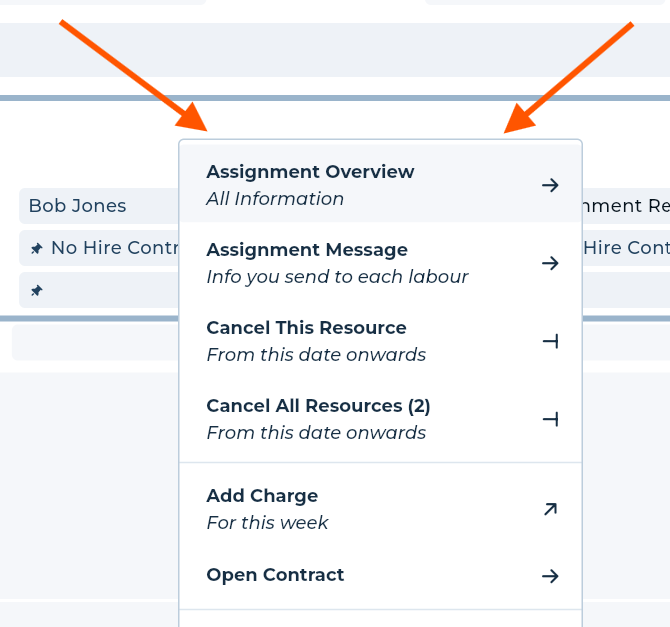
Right Click Menu on the Scheduler Sticker
Right click on any sticker on the scheduler -> Assignment Overview
Additional Resources Hover View
When you hover over the Additional Resources section on a scheduler sticker, a dialogue will show the assignment resources for that day.
Clicking on any resource in this dialogue will open the Assignment Overview.
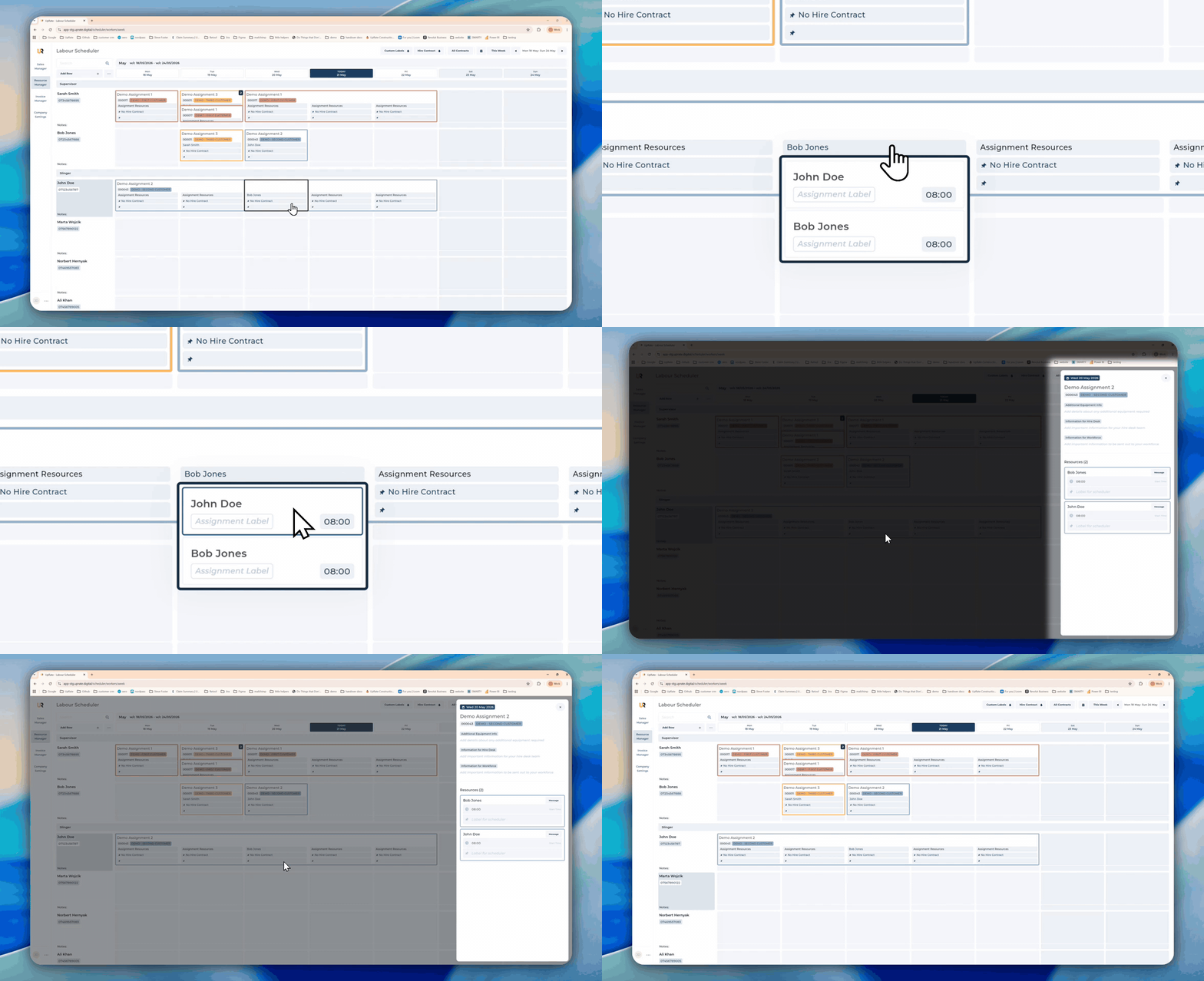
This replaces the previous pop-up, where you could only edit one resource’s label or start time at a time.
The new view makes it easier to review and update these details for all resources assigned to that day.
Engagement Scheduler Date Header
You can now click on a date header in the Engagement Scheduler pop-up to open the Assignment Overview for that day.
This is useful when adding new resources to an existing assignment. After adding the resource, click the relevant date to open the Assignment Overview and update the resource details straight away.
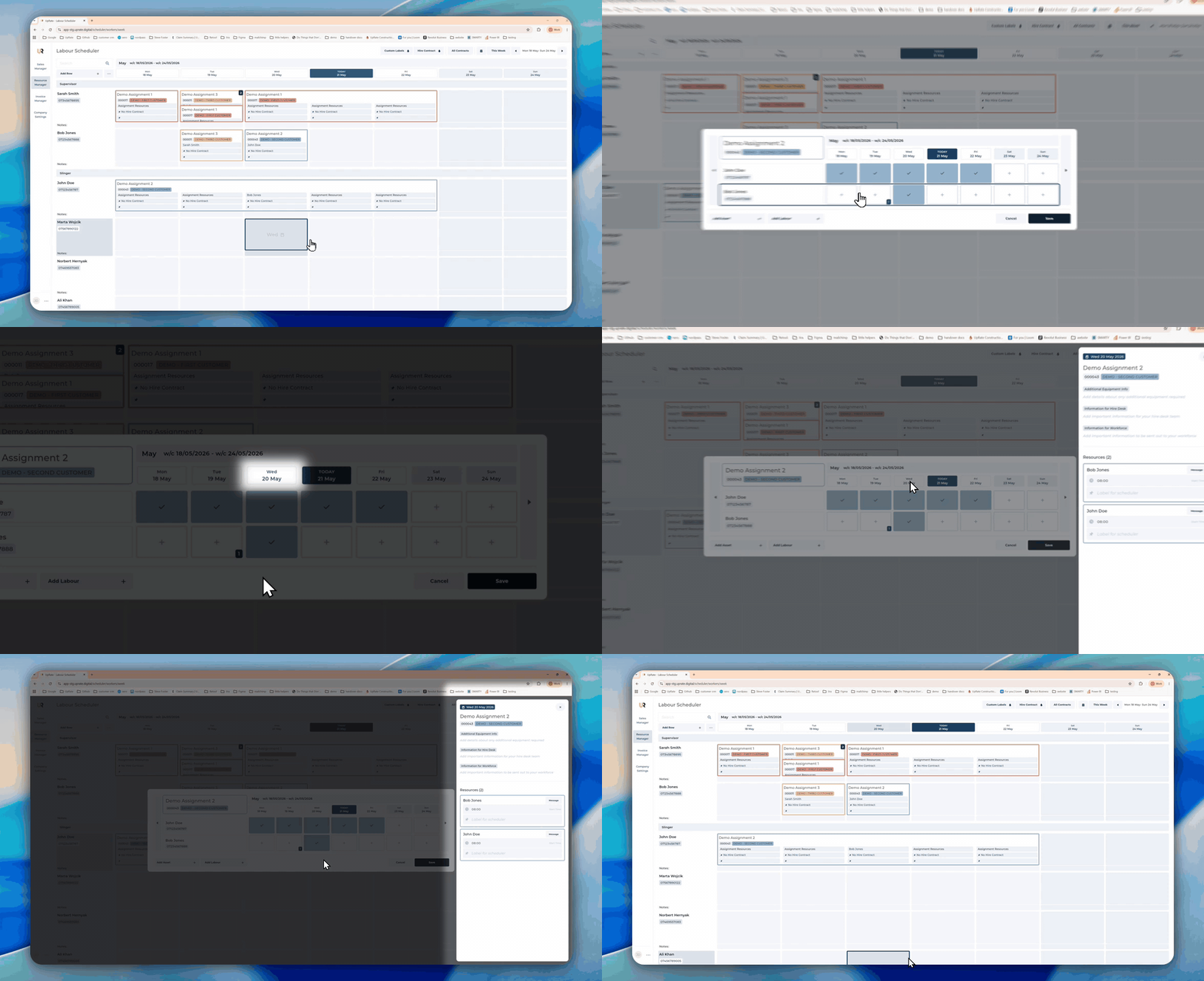
This makes it easier to adjust daily resource details without leaving the scheduler flow.