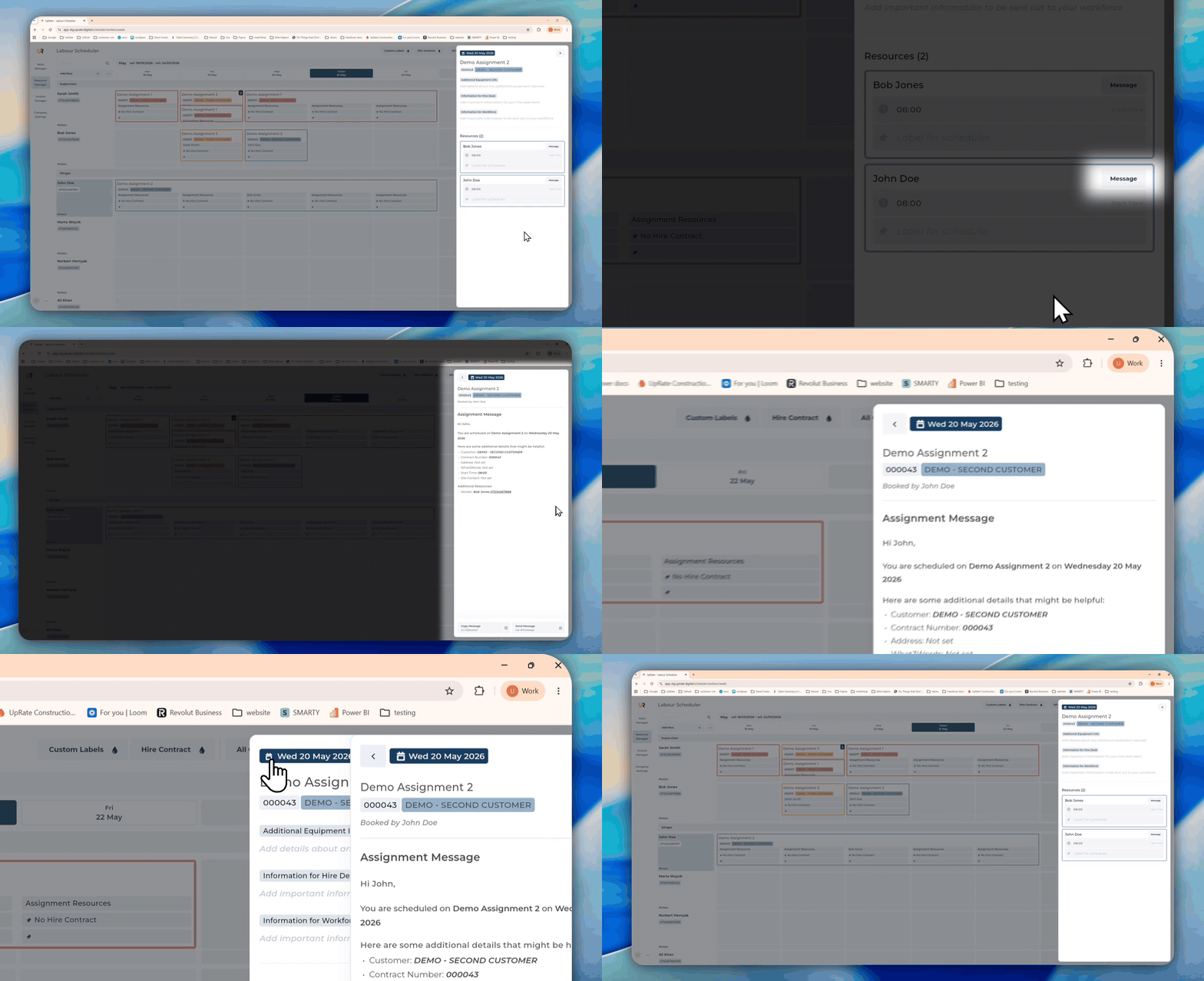

Assignment Message
Guides on how to change details for the assignment Message and how to access it.
Overview
What it is
The Assignment Message is used to send the key daily contract details to the assigned workforce.
It includes important information for that specific assignment day, such as:
Contract details
Site contact
Site address
what3words location
Information for the workforce
Additional equipment information
Additional resources assigned for that day
Primary Resource's start time
The Assignment Message also includes each resource’s label, if these have been set.
This helps ensure everyone assigned to the contract has the correct information for the day.
Copy or Send the Assignment Message
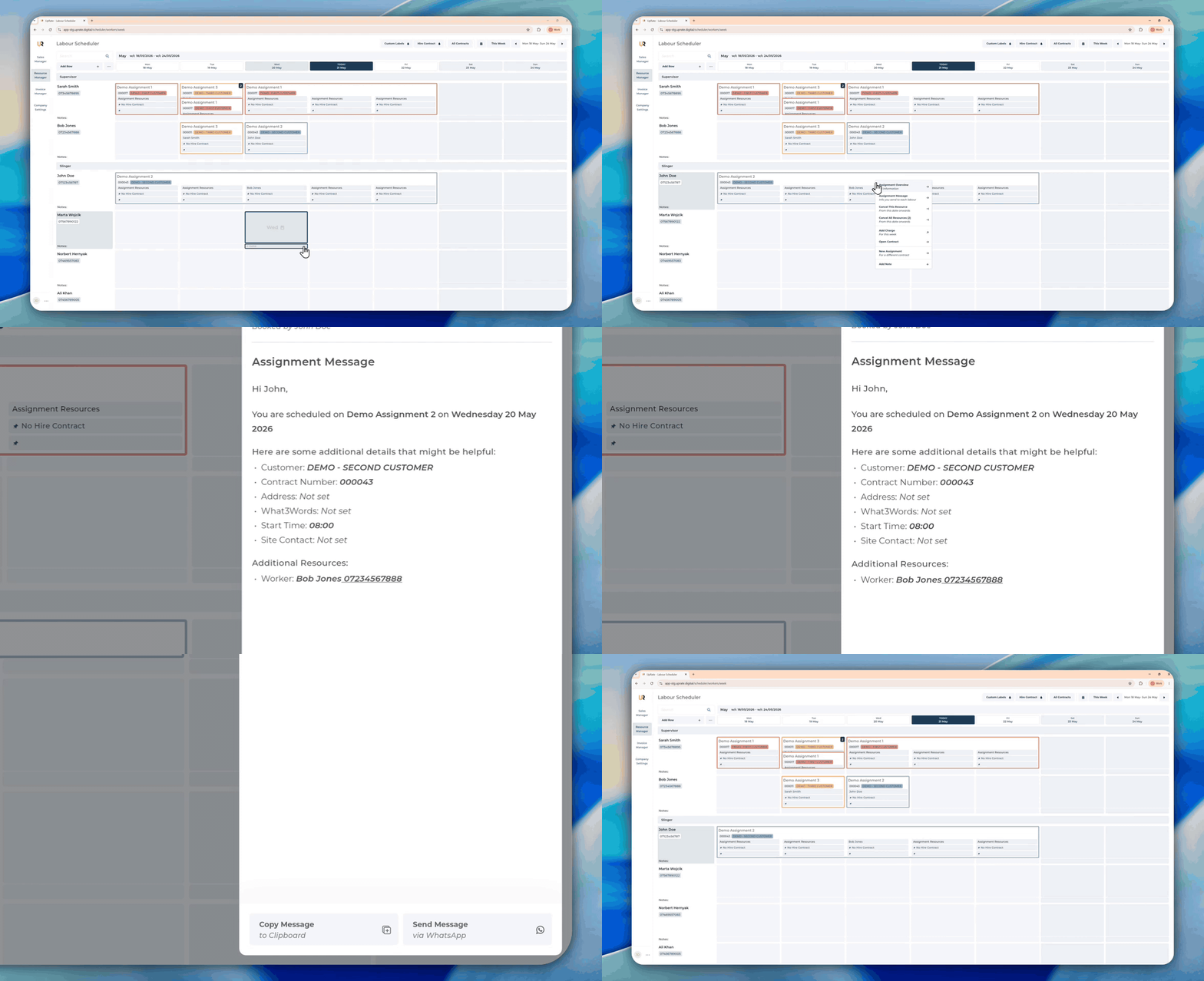
Once you accessed the Assignment Message, you can either:
Copy the message
Send it directly to the worker via WhatsApp
To send the message via WhatsApp, make sure:
The worker has the correct phone number added in UpRate
WhatsApp Desktop is installed on your computer
This allows you to quickly send daily assignment details directly to the assigned worker.
How to Access
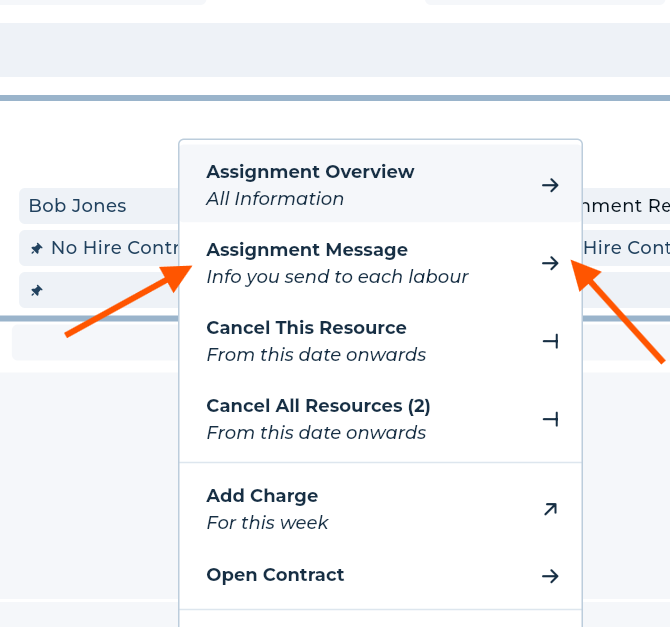
From the Scheduler Sticker
Right-click on the scheduler sticker and select the Assignment Message option.
This will open the Assignment Message directly, where you can still:
Copy the message
Send the message via WhatsApp
From the Assignment Overview
You can also open the Assignment Message from the Assignment Overview side panel.
This view shows all resources assigned to that day, making it easier to check that each labour resource receives their daily message.