
Manage Timesheets
How to manage timesheets and navigate on the Timesheets page.
When you enter the Timesheet Manager you have the ability to navigate across weeks, add/remove Timesheets and view other Documents.
Navigation
Navigating Between Weeks
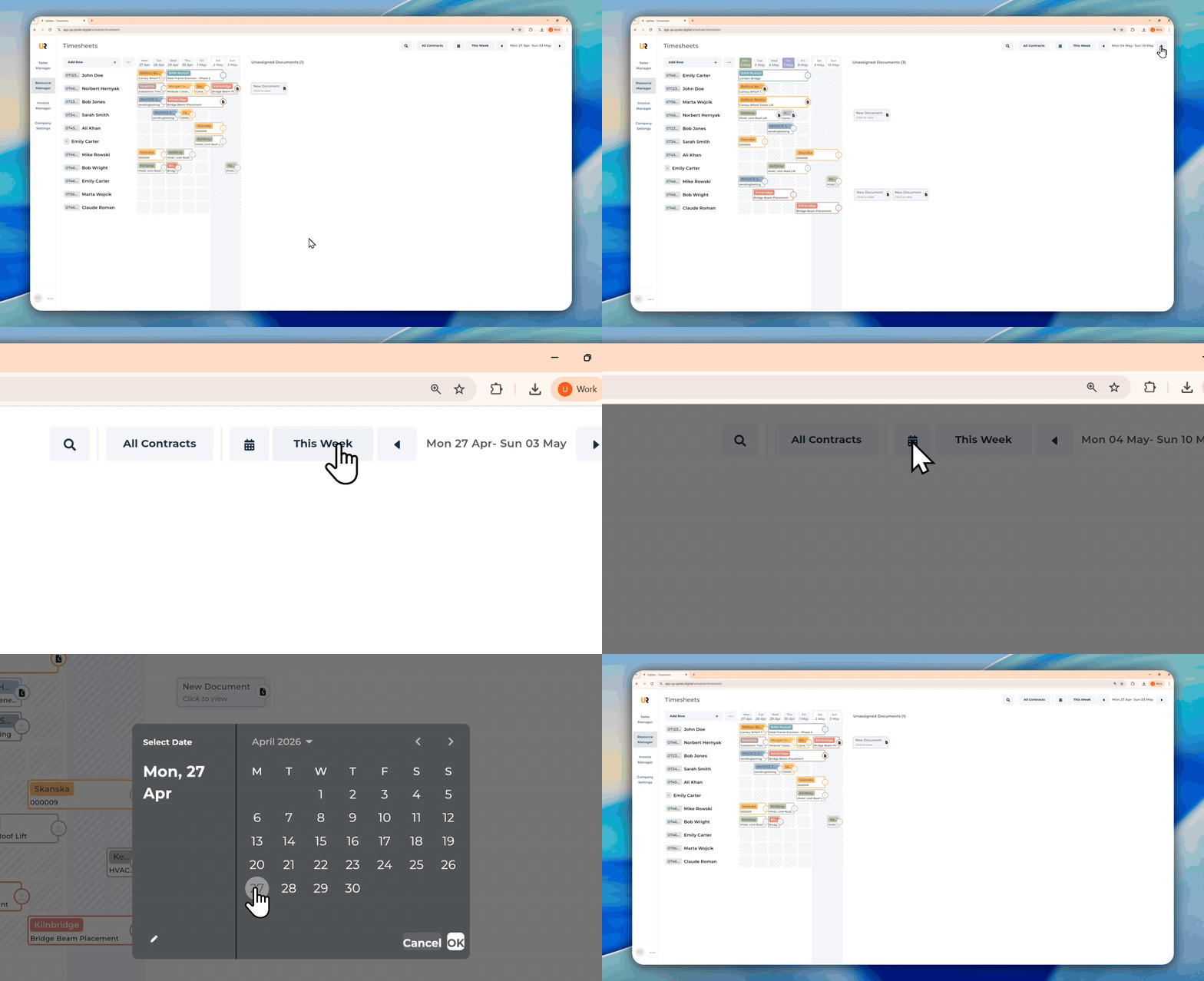
Open Timesheets tab
On the top right corner you can find all the navigation buttons
Use the arrows to move across the weeks
Click This Week to jump to this week's view
Click the Calendar button to select a specific date
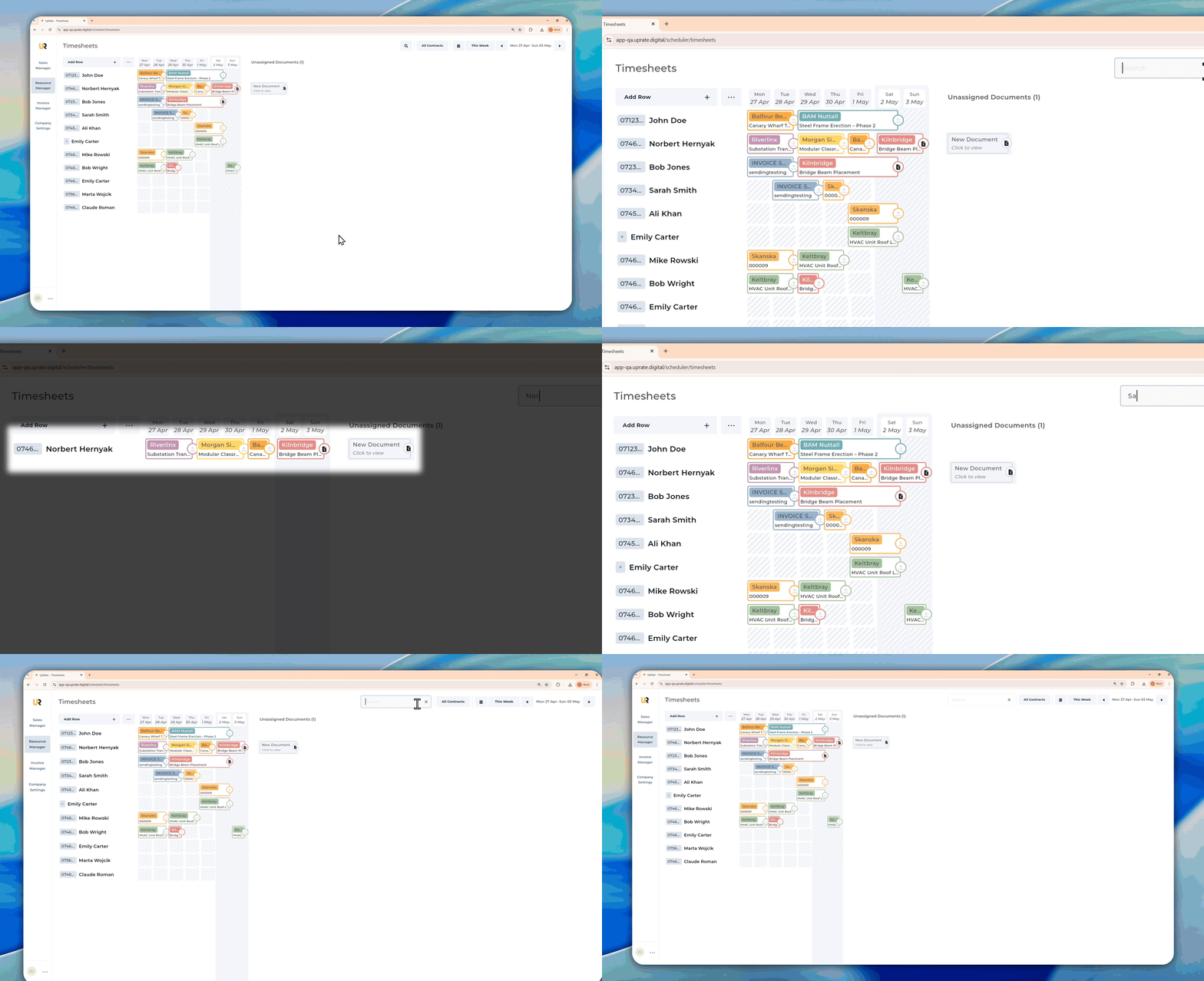
Search for Worker
On the top you can find a search bar
Search for a worker's name to find them easier
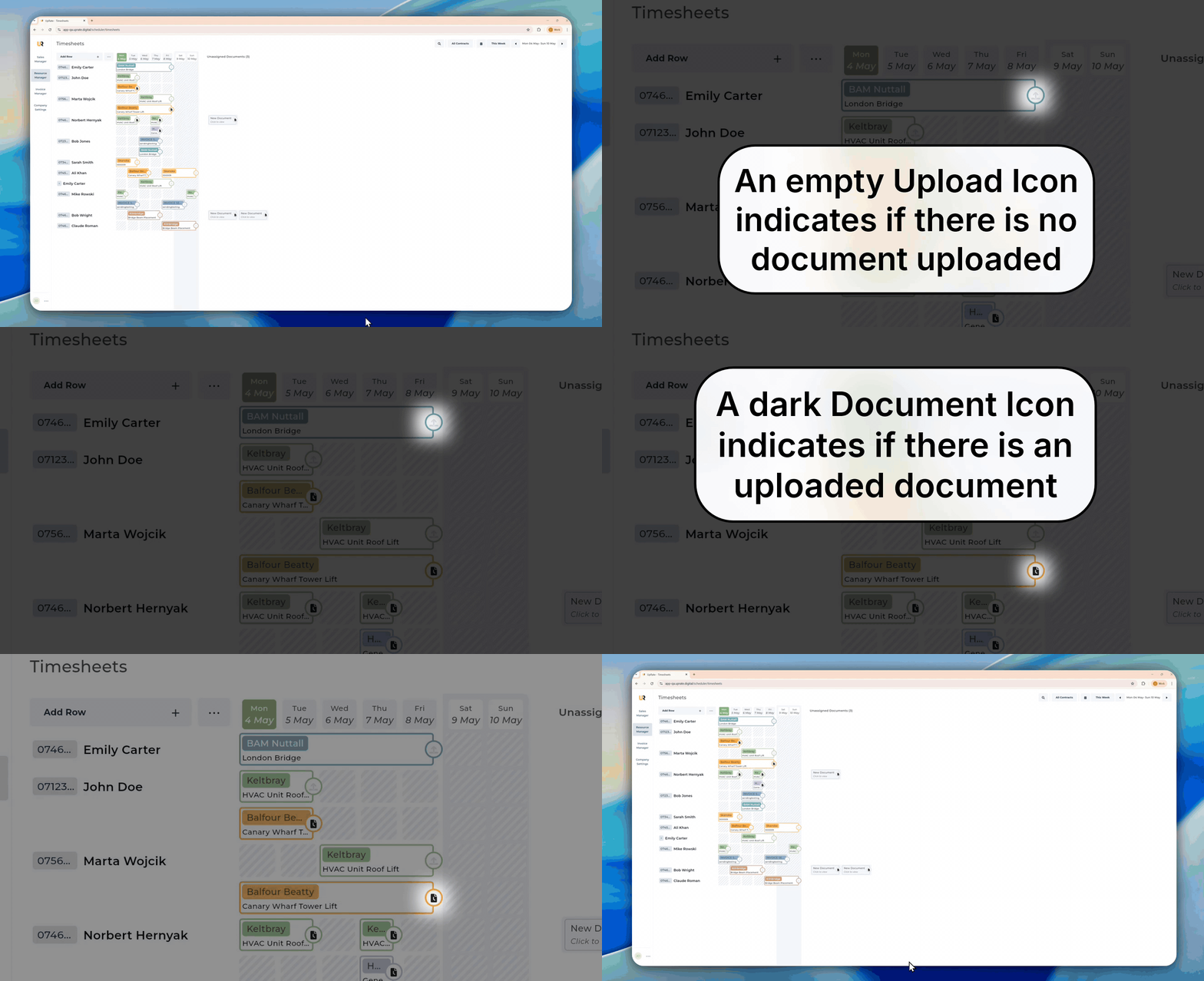
View a timesheet
You can view all the uploaded timesheets in the Timesheet manager or on the Invoice page.
From Timesheet Manager
Open Timesheets tab
Find the worker you want to view the documents for
Click on the engagement sticker where there is an uploaded document
The pop up will automatically open the document.
Clicking Done will close the pop up
Upload a Timesheet
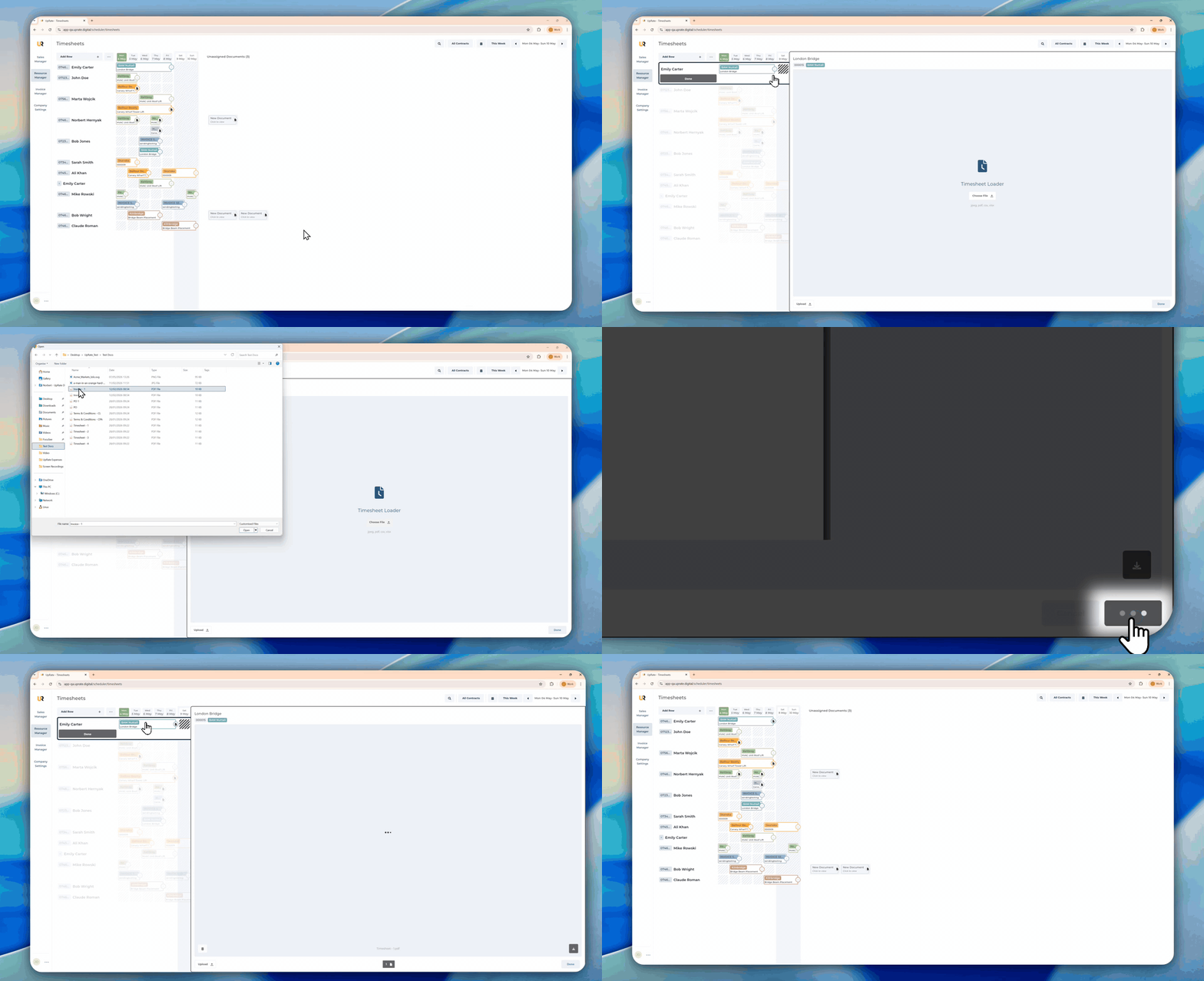
If a worker is missing a timesheet you have the ability to add one (or many) to any contract. We indicate a missing timesheets by showing a light coloured Upload Icon on every engagement sticker.
There are two places you can upload a timesheet for a contract.
From Timesheet Manager
Open Timesheets tab
Find the worker you want to upload a timesheet for
Click any part of the engagement sticker you want to upload the timesheet to
Click Choose file
Find the document and select it by clicking on it
Click Open on the document selector pop up
Click Save on the bottom right corner