
Resource Manager Navigation
Guide to navigate across weeks in the multi week and single week scheduler views.
You can quickly move between weeks in the Scheduler using the navigation options in the top right corner.
Toggle Between Views
Single Week View
You can navigate through the scheduler in three ways:
Click the left or right arrows in the top right corner to move backwards or forwards through the weeks
Click the calendar icon to choose a specific date to view
Click the This Week button to return to the current week
Multi Week View
You can switch between single or multi week view by doing the following:
Click the any part of the week's header row
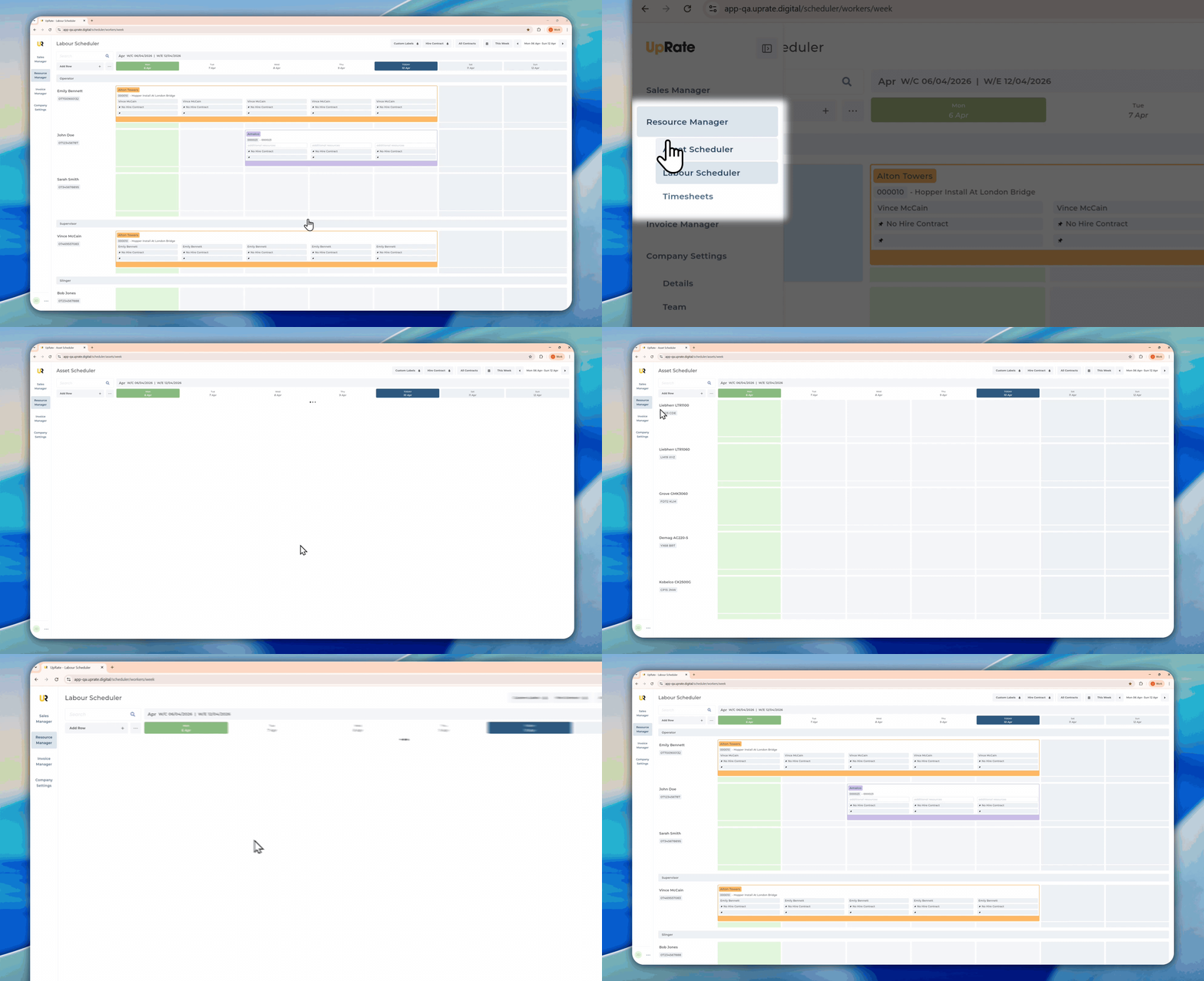
Navigation Sidebar
Go to the Sidebar Navigation to switch between Labour or Asset Scheduler view
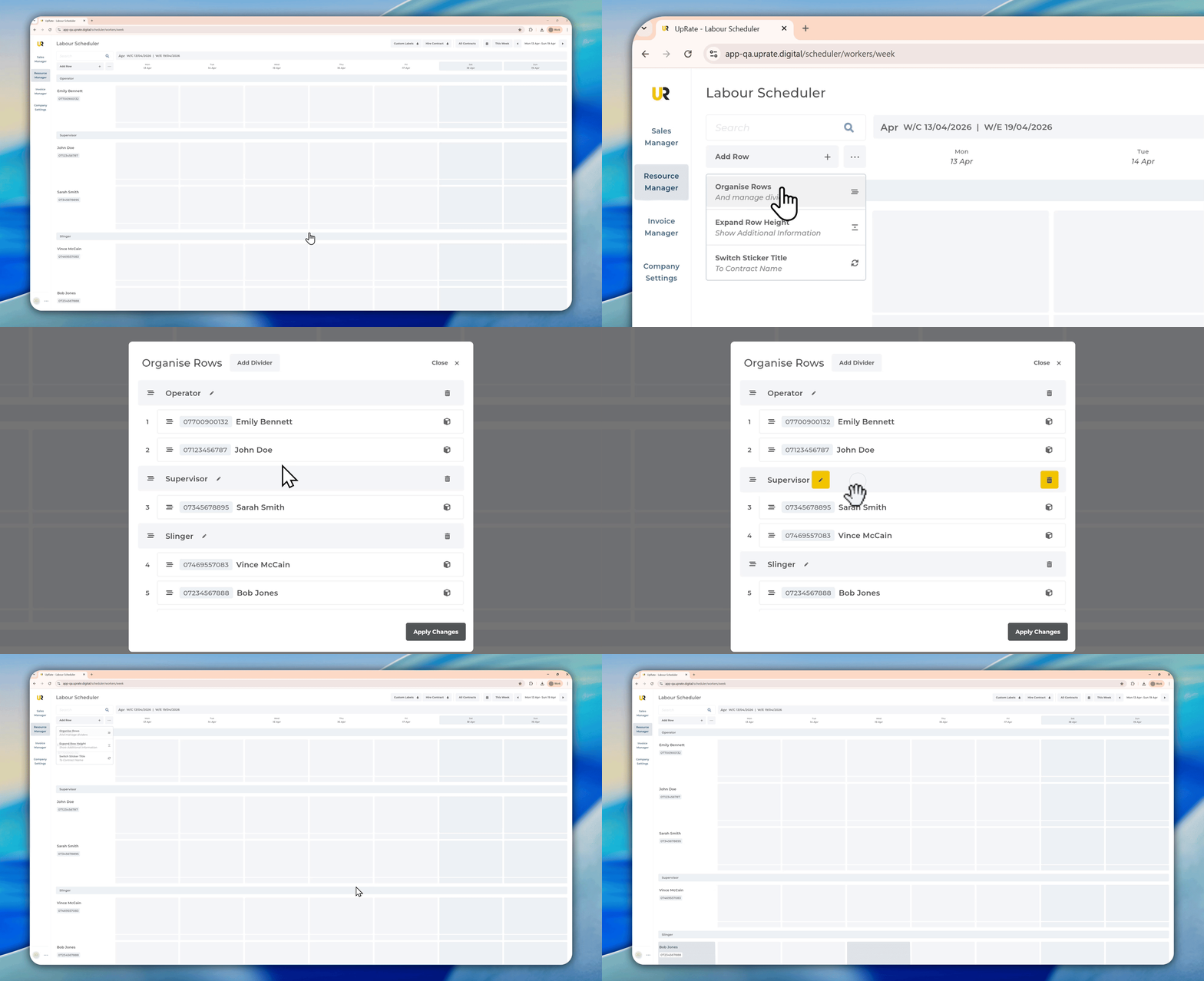
You can move asset or labour resources up and down on the scheduler very easily using our Organise Rows pop-up.
Scheduler Organisation
Add Divider Onto Scheduler
Click the Three Dots on the top left corner in the Scheduler
Click Organise Rows
Click Add Divider in the pop up
Edit the divider's name
Click Apply Changes
Reorder Your Resources
Click the Three Dots on the top left corner in the Scheduler
Click Organise Rows
Drag and drop your resources and dividers to arrange them
Click Apply Changes